Tamil Font Not Showing: Fix Boxes, Broken Letters and Gibberish
தமிழ் எழுத்து சரியாகத் தெரியவில்லையா?
Boxes, broken letters and gibberish are three different problems. Treating them as one is why reinstalling the same font rarely helps.
Short answer
Open the text in the app that shows the problem and identify the symptom. Boxes usually mean the font is missing. Broken or reordered letters mean the app is not shaping Tamil. Latin-looking text such as jkpo; is a legacy font, while à®... is a UTF-8 file read with the wrong encoding. Fix the cause, not just the font.
Start With What You See
Three symptoms look similar in a screenshot but have different causes. Pick the one that matches your text.
| What you see | Likely cause | First fix |
|---|---|---|
| Boxes or blank squares | The selected font has no Tamil glyphs, or no Tamil font is installed. | Install a Unicode Tamil font and select it. |
| Detached or reordered letters | The app is not shaping Tamil, even if the font is correct. | Use an app version or composer that supports complex scripts. |
jkpo; or ,e;j | Legacy Bamini-style text stored as Latin characters. | Convert the text to Unicode, then apply a Unicode font. |
தமிழ௠| UTF-8 bytes decoded as Latin-1, usually in a CSV or old web page. | Reopen or import the file as UTF-8. |
Boxes or Blank Squares
A box means the app reached a Tamil character and found no glyph for it in the font it was told to use. The text is probably fine; the font is not.
Install a Unicode Tamil font. Noto Sans Tamil, Nirmala UI (Windows) and Latha (Windows optional fonts) all include Tamil glyphs. Follow the Tamil font installation guide for your device.
Select the Tamil text, not the whole document. A mixed document can use a Latin font for English and a Tamil font only for Tamil. If you force a Latin-only font on Tamil, the boxes come back.
Restart the app. Most apps read the installed font list only at startup. A font that was installed while Word or Photoshop was open may not appear until you quit and reopen it.
Check the PDF. If the boxes appear only in a PDF, the PDF may not have the font embedded. Install the missing font and reopen the file, or ask for a new PDF with fonts embedded.
On Android and iPhone, boxes usually mean the app is using a font that lacks Tamil, not that the phone needs a system font. Both systems include Tamil fallback fonts for normal text. If one app shows boxes, try a different app before you change phone settings.
Broken or Reordered Letters
Tamil is a complex script. The app has to reorder vowel signs, join some letters, and choose the right glyph for a sequence. A font alone cannot do that. When the shapes are wrong but the letters are Tamil, the app is the problem.
Photoshop 22 and earlier: switch the text engine to World-Ready Layout. See Tamil in Photoshop for the exact preference and restart steps.
Illustrator: choose the Middle Eastern and South Asian composer from the Paragraph panel menu. The default Latin composer does not shape Tamil correctly.
Old PDF, label or cutting software: if the app has no complex script setting, compose the Tamil in Illustrator or InDesign and place the result as artwork. Do not convert broken text to curves: that preserves the mistake.
Copy from a legacy document: if the text came from Bamini or another legacy font, convert it before you judge the shaping. Applying a Unicode font to legacy text only changes the Latin letters.
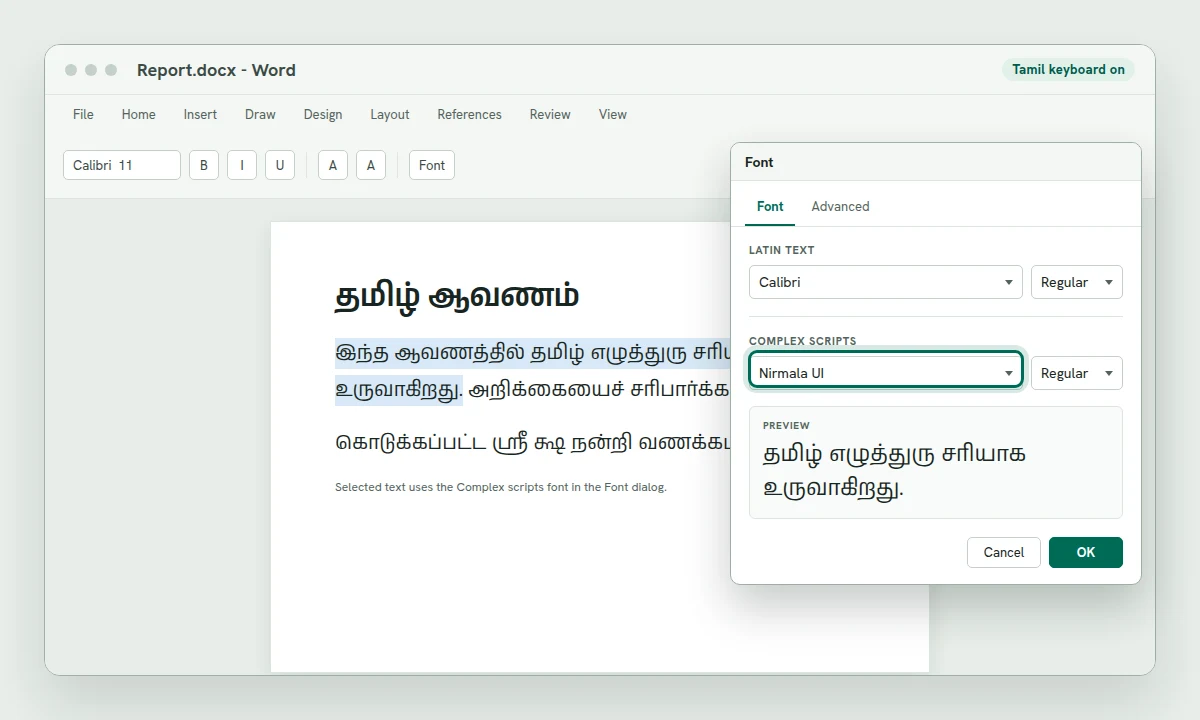
If the text is in Word, the app does shape Tamil, but it uses the Complex scripts font for the selected Tamil text. A Latin font in the main font box can still leave Tamil with the wrong font or spacing.
Gibberish: Legacy Text or the Wrong Encoding
The two kinds of gibberish need different fixes. Look at the characters before you change anything.
Latin-Looking Tamil Such as Jkpo;
Bamini and similar legacy fonts map Tamil shapes onto English keys. The word தமிழ் can be stored as jkpo;. It looks correct only while the Bamini font is applied. In any other font, or on a phone, it turns back into Latin letters.
Convert the text with the Bamini to Unicode converter, then apply a Unicode Tamil font. Do not simply install Bamini on every device: the underlying text is still Latin, search will fail, and the problem returns the moment the font is missing.
Mojibake Such as தமிழà¯
This is UTF-8 text being decoded as Latin-1. The Tamil bytes are correct, but the program read each byte as a separate Western character. It happens most often when Excel opens a CSV by double-clicking, when a web page omits its charset, or when an old database export assumes a Windows code page.
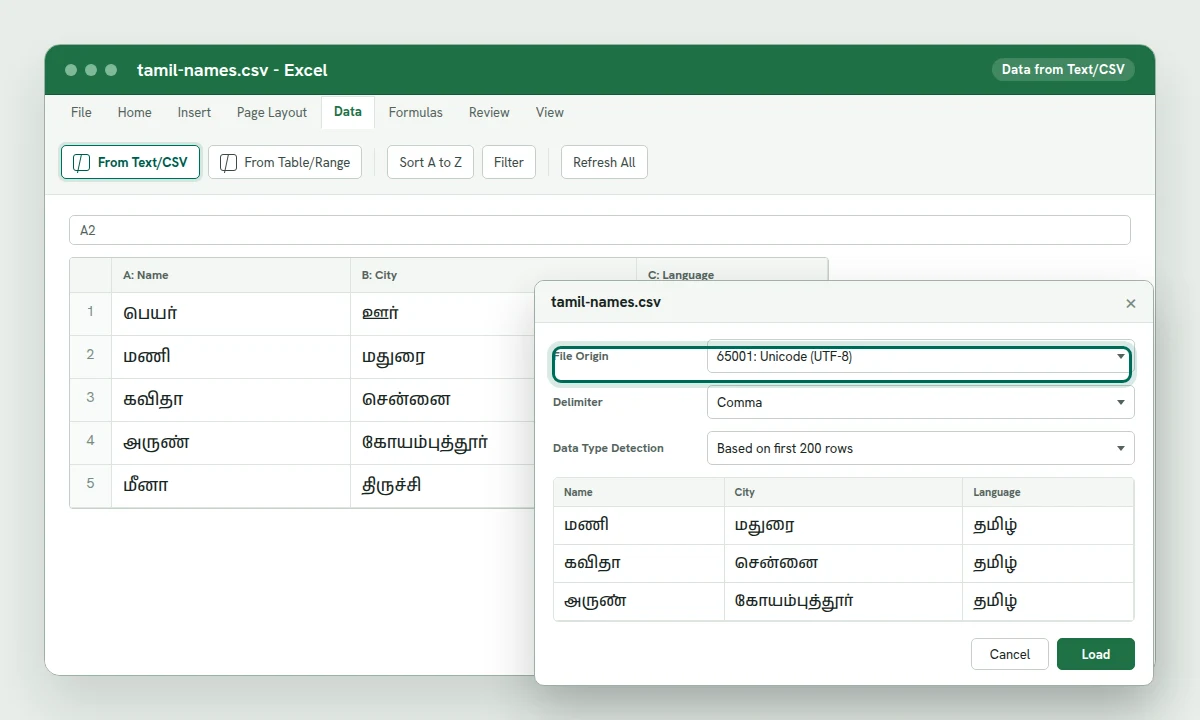
Fix the import, not the font. In Excel, use Data > From Text/CSV and set File Origin to 65001: Unicode (UTF-8). In a text editor, reopen the file as UTF-8. In an app you control, save the file as UTF-8.
Word, Excel and Notepad
Word
Select the Tamil text.
Open the Font dialog with Ctrl + D on Windows or Command + D on Mac.
In the Complex scripts font list, choose a Unicode Tamil font such as Nirmala UI or Noto Sans Tamil.
If the text is legacy, convert it first. Changing the font will not turn
jkpo;into Tamil.
Set the proofing language to Tamil as well if spell check matters. It is separate from the font: the language controls the dictionary, while the Complex scripts font controls the glyphs.
Excel
Do not double-click the CSV. Open Excel, then choose Data > From Text/CSV.
Select the file and set File Origin to
65001: Unicode (UTF-8).Check the preview. Tamil should appear as Tamil before you choose Load.
When you export, choose Save As > CSV UTF-8 (Comma delimited) (*.csv) so the next program reads it correctly.
If the Tamil is already in a cell as à®..., changing the font will not repair it. The characters were decoded wrongly on the way in, so import the source again.
Notepad
Windows 10 version 1903 (19H1) and later create new Notepad files as UTF-8 without a byte order mark by default. Older files may still be ANSI. Open File > Save As, check the encoding menu, and choose UTF-8 before you save Tamil text. If you see the old text as à®..., close the file without saving and reopen it with the correct encoding.
Browsers
Firefox can repair a page that was decoded with the wrong character set. Open the menu and choose View > Repair Text Encoding. On Windows and Linux, the menu bar may be hidden; press Alt to show it temporarily.
Chrome and most mobile browsers do not offer a text encoding override. If a page shows à®... in Chrome, the page or its server sent the wrong charset. The site owner needs to declare UTF-8 with a Content-Type: text/html; charset=utf-8 header or a <meta charset="utf-8"> tag. You cannot fix that from the browser.
Android, iPhone, Email and PDF
Android and iPhone
Both systems include Tamil fonts for normal text, so boxes or broken letters in one app usually point to that app, not the phone. Check for an app update, try a different app, and avoid copying legacy text. Custom fonts installed through an iPhone font app are available only in apps that support them.
Plain-text email carries no font. The recipient's app chooses the font, and the Tamil should still read correctly if the text is Unicode. HTML email can name a font the recipient does not have. Use a common Unicode Tamil font, or send a PDF with the font embedded if the layout matters.
A PDF can embed the font or rely on one installed on the reader's device. If the same PDF shows Tamil on one computer and boxes on another, the font is probably not embedded. Install the named font, or ask the sender to export again with fonts embedded. Avoid retyping inside a PDF unless you have no other copy.
A Quick Order of Checks
Is the text Unicode Tamil or legacy Bamini-style text? Test a word such as தமிழ் in a plain Unicode editor.
Does the selected font contain Tamil? Switch to Noto Sans Tamil or Nirmala UI.
Does the app shape complex scripts? Update it, or enable its South Asian composer.
Is the file encoding UTF-8? Reimport CSVs and reopen text files with the correct encoding.
Is the problem only in a PDF or email? Check font embedding and send a Unicode document instead.